Sharpen an Image Online Free in 3 Steps
Drop a photo into the box above, or click to browse. The sharpener runs entirely in your browser — the image is never uploaded to a server, so even large files open instantly.
Set the sharpen amount slider. 50–70 works for most photos; go higher only when the softness is uniform across the frame. Pick "Preserve" to leave noise and skin texture alone, or "Sharpen" when the edges themselves are weak, like scanned text or a photo shot slightly out of focus. The preview updates as you drag, so you can compare at 100% before committing.
Click Download when it looks right. You get the file back at its original resolution — no resizing, no re-compression, no watermark.
Real Results — Before & After
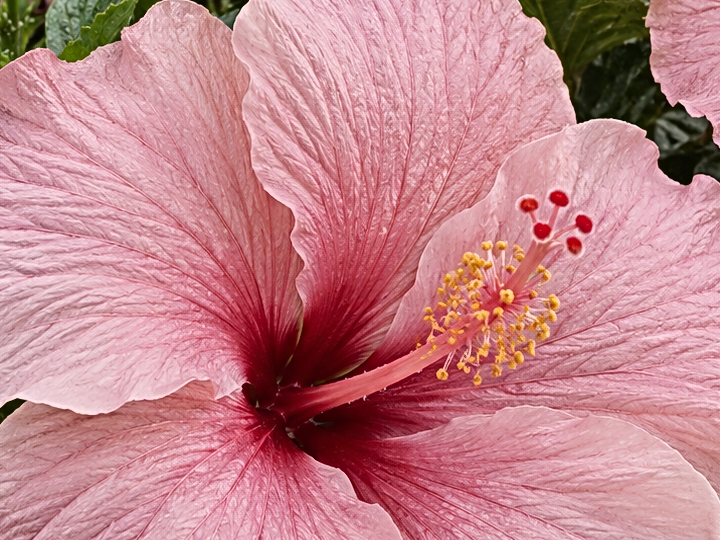
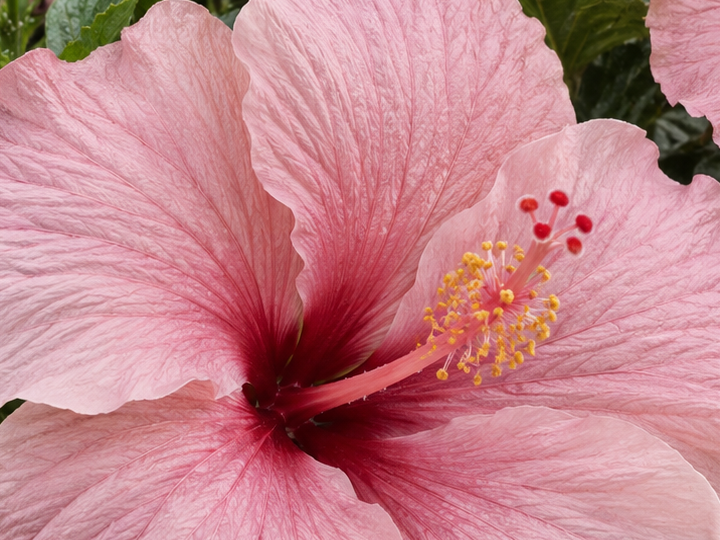
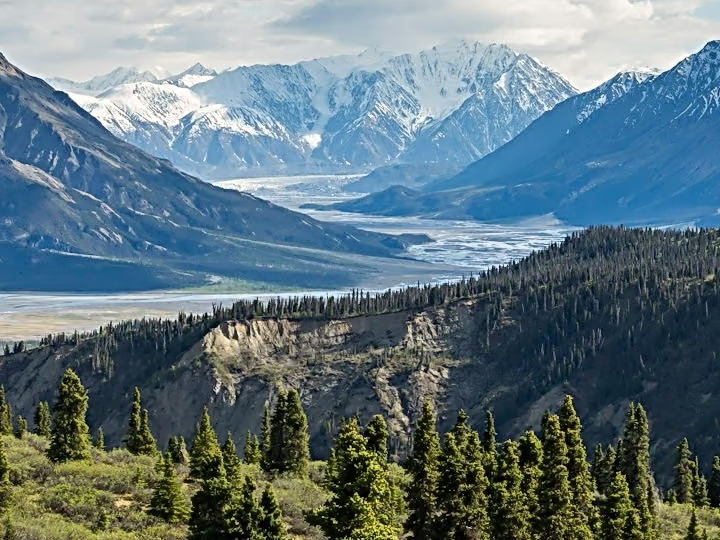
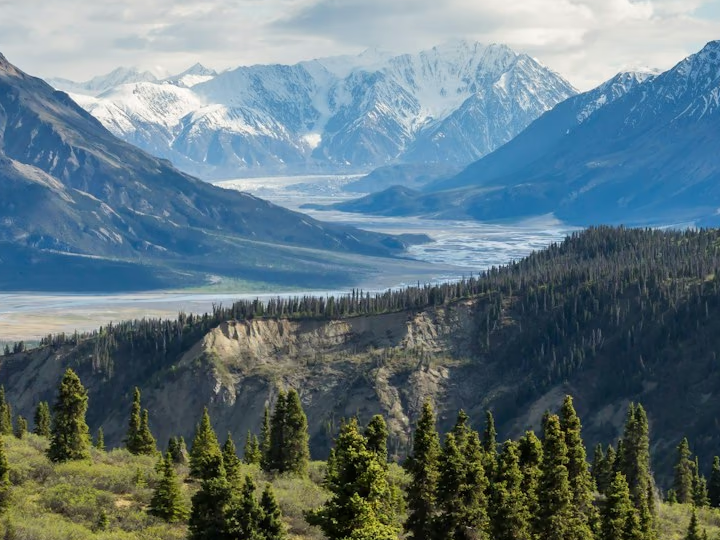
Three sample images, processed with this tool at Amount 60, Edge: Preserve. Drag each divider to compare the same 720 × 540 crop before and after sharpening.
Mountain landscape — Amount 60, Edge: Preserve, sample 720px wide. Compare the mountain ridges, rocky slopes and evergreen trees. Sharpening adds contrast to existing edges and texture; it does not create new landscape details.
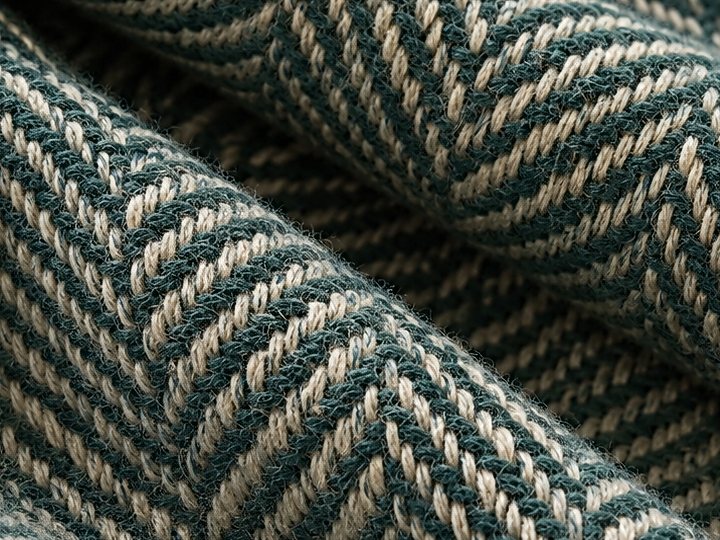
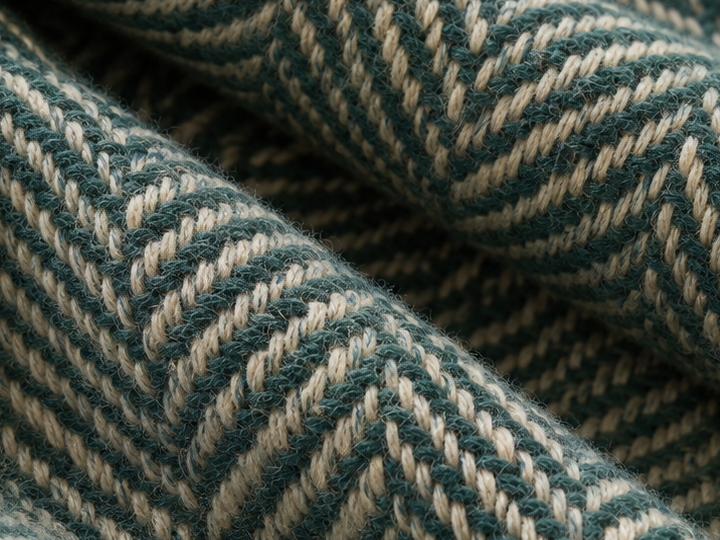
Woven fabric — Amount 60, Edge: Preserve, sample 720px wide. Follow the cream stitches and teal yarn across the folds. The stronger separation between light and dark threads makes the weave more distinct. Areas outside the focal plane remain soft.
Architecture — Amount 60, Edge: Preserve, sample 720px wide. Compare the window frames, shutter slats and iron railing. Their existing edges become more defined while the composition and dimensions stay the same. Try this sample above to adjust the strength yourself.


Why Does My Photo Look Blurry?
Softness comes from three different places, and only one of them is recoverable.
Motion blur and missed focus destroy information. If the shutter moved during exposure, or the subject was outside the focal plane, those pixels are gone — sharpening will produce hard edges around a smear that still reads as a smear. Mild missed focus responds well at high amounts; heavy motion blur does not respond at all.
Low contrast is recoverable, and it is the most common case. A photo shot in flat light, taken through a window, or saved at a low JPEG quality has detail present but compressed into a narrow range of tones. Local contrast enhancement pulls it back out, which is exactly what sharpening is: it exaggerates the difference between neighbouring pixels.
Resolution is not recoverable, but it is often mistaken for blur. If the photo was enlarged beyond its native size, the pixels were interpolated, and no amount of sharpening invents detail that was never captured. That is an upscaling problem, covered in the next section.
Sharpening vs. Upscaling — Which Do You Need?
These two get confused constantly, and using the wrong one wastes your time.
Sharpen when the image is the right size but looks soft. Detail is there, just low contrast. The image dimensions do not change. This tool does that.
Upscale when the image is too small. A 400px product photo on a 1200px product page will look soft no matter how much you sharpen it, because the browser is stretching pixels that were not there to begin with. Upscaling uses interpolation or a trained model to estimate the missing pixels, then output is larger than input.
If you are unsure: open the image at 100% zoom. If the edges are visible but weak, sharpen. If the image is visibly blocky or pixelated at its intended display size, you need to upscale.
Is Image Sharpening Really Free?
Yes. The tool runs in your browser, which is why there is no signup wall, no upload queue, and no daily limit. Nothing is sent to a server, so there is no storage cost behind it and nothing to pay for.
The usual catch with free image tools is a watermark or a resolution cap on the output. Neither applies here — the file you download is the same resolution as the file you uploaded, with no overlay added.
Your photos never leave your device. That is a side effect of the browser-only design, but it also means the tool is safe for documents with personal information: ID scans, invoices, medical images. Nothing is uploaded, so nothing can be logged or stored.
Need Batch Processing or API Access?
The browser tool handles one image at a time by design — processing happens locally, which is what keeps it private and instant, but it also means there is no queue to hand off a folder of five hundred files.
Batch processing and an API endpoint are both in development. If you need to sharpen at volume — product catalogs, scanned archives, automated pipelines — send a note describing the volume and the file types and you will be notified when it is ready.